Chrome Installation Guide
 Google Chrome · Recommended
Video Tutorial
Video Description
The video shows the complete flow from downloading the installer to finishing the extension installation. It is recommended to watch the video first, then follow the step-by-step guide below.
Method 1: Online Installation (Chrome Web Store)
Prerequisites
This method is available after listing on Chrome Web Store. Before listing, please use offline installation.
Step 1: Open Chrome Web Store
Open Chrome Web Store, search for "PriceMinder".
Step 2: Click Install
On the extension detail page, click the "Add to Chrome" button, and click "Add extension" in the confirmation dialog.
Step 3: Pin to Toolbar
Click the Extensions button (puzzle icon) in the upper right corner of Chrome, find "PriceMinder", and click the pin icon to pin it to the toolbar.
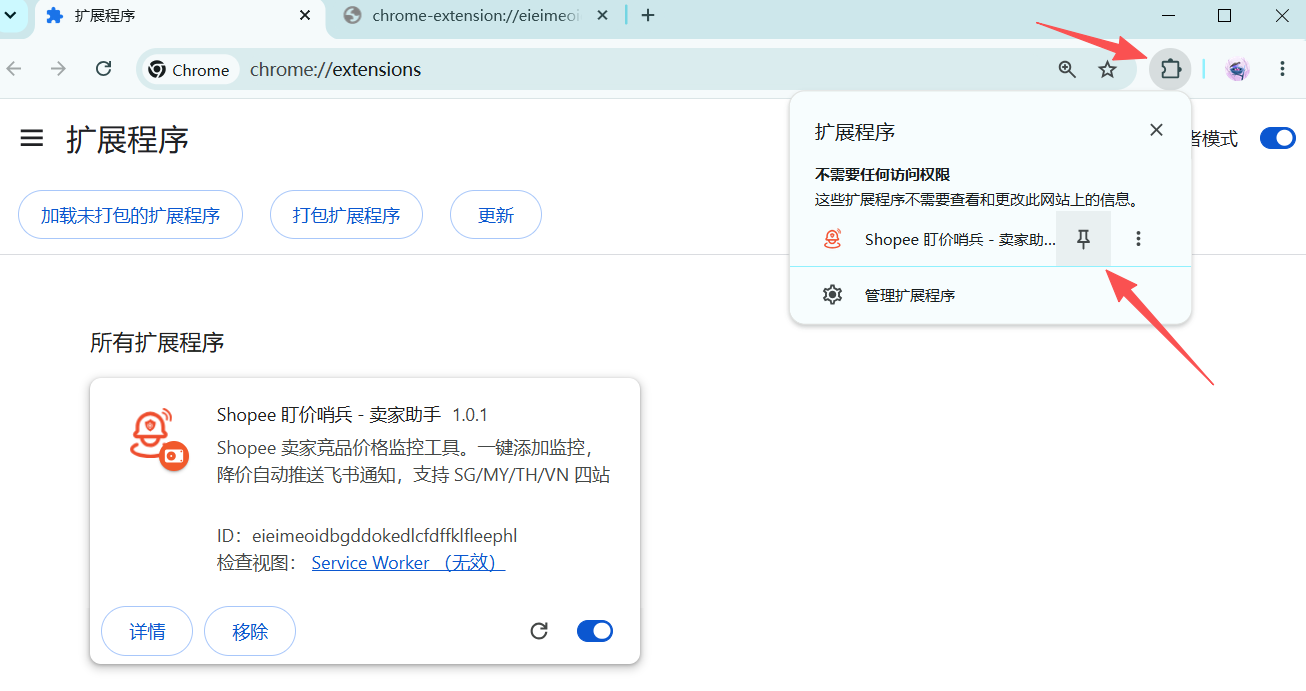
Step 4: Start Using
Click the PriceMinder icon on the toolbar to open the extension panel and start using it. First-time users need to configure push channel and alert thresholds. See the post-installation configuration below for details.
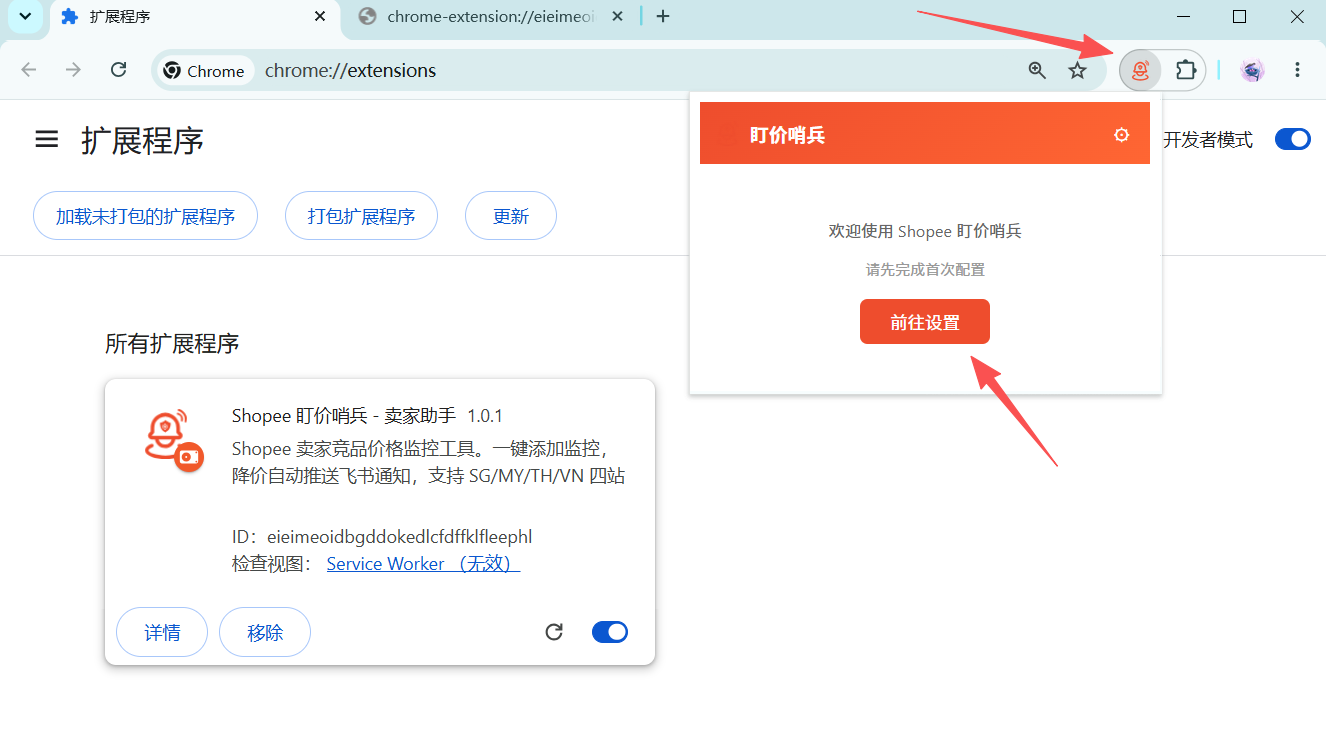
Method 2: Offline Installation (ZIP Extract and Load)
Recommended Method
This method is recommended when you cannot access Chrome Web Store due to network conditions in China. Note: Find the "Developer mode" toggle in the upper right corner of the page and turn it on first.
Prerequisite: Enable Developer Mode
Type chrome://extensions in the Chrome address bar and press Enter to open the extension management page.
Step 1: Download the ZIP Package
Click to download ZIP sentinelseller-extension-1.0.1.zip file.
Step 2: Install the Extension
Method A: Drag and Drop (Recommended) — Chrome version 150.0.7871.102 (stable) and earlier support directly dragging the downloaded ZIP file into the chrome://extensions page to complete installation.
Method B: Extract and Load — Extract the ZIP file to a fixed directory (e.g., D:\Extensions\PriceMinder), then on the chrome://extensions page, click "Load unpacked extension", select the extracted folder to complete installation.
Important
The extracted folder path must not contain Chinese characters or spaces, otherwise the extension may fail to load.
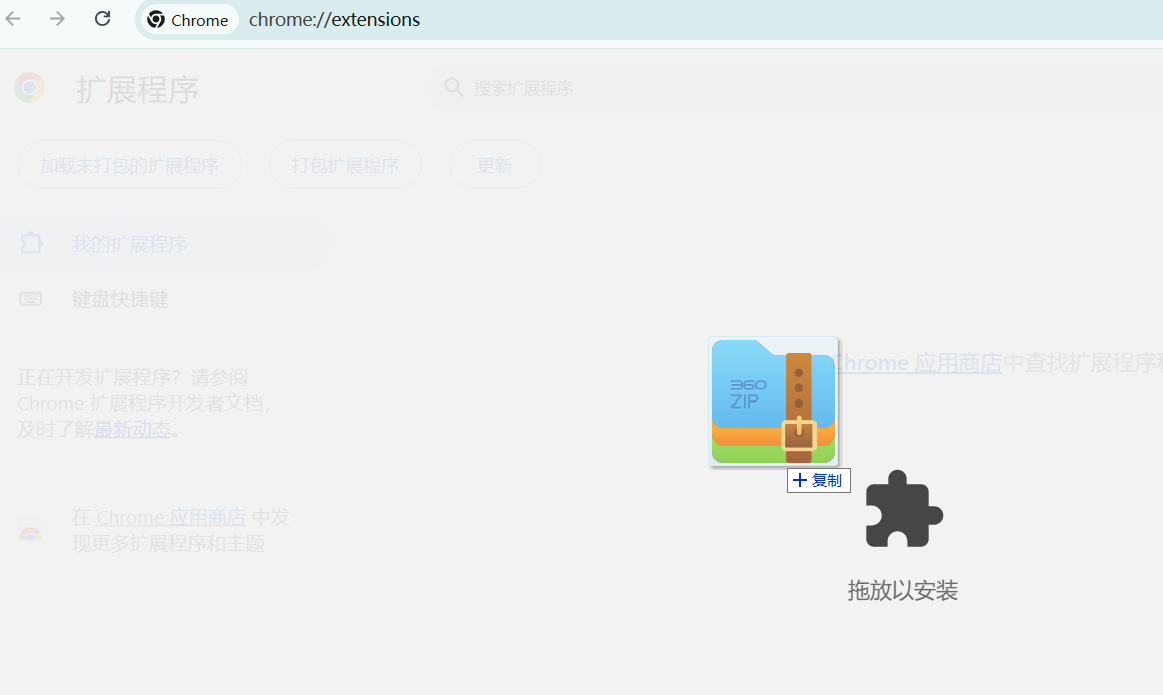
Step 3: Pin to Toolbar
Click the Extensions button (puzzle icon) in the upper right corner of Chrome, find "PriceMinder", and click the pin icon to pin it to the toolbar.
Step 4: Start Using
Click the PriceMinder icon on the toolbar to open the extension panel and start using it. First-time users need to configure push channel and alert thresholds. See the post-installation configuration below for details.
Post-Installation Configuration
Step 1: Start Configuration (First Time)
The extension settings display the server address connected to the extension. Click the "Start Configuration" button.
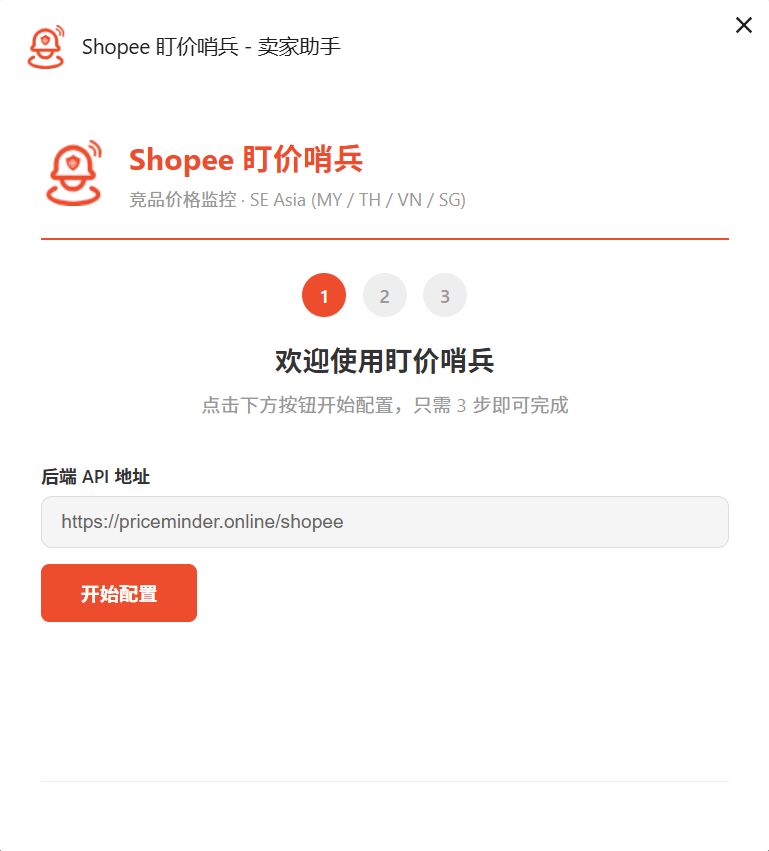
Step 2: Verify Connection
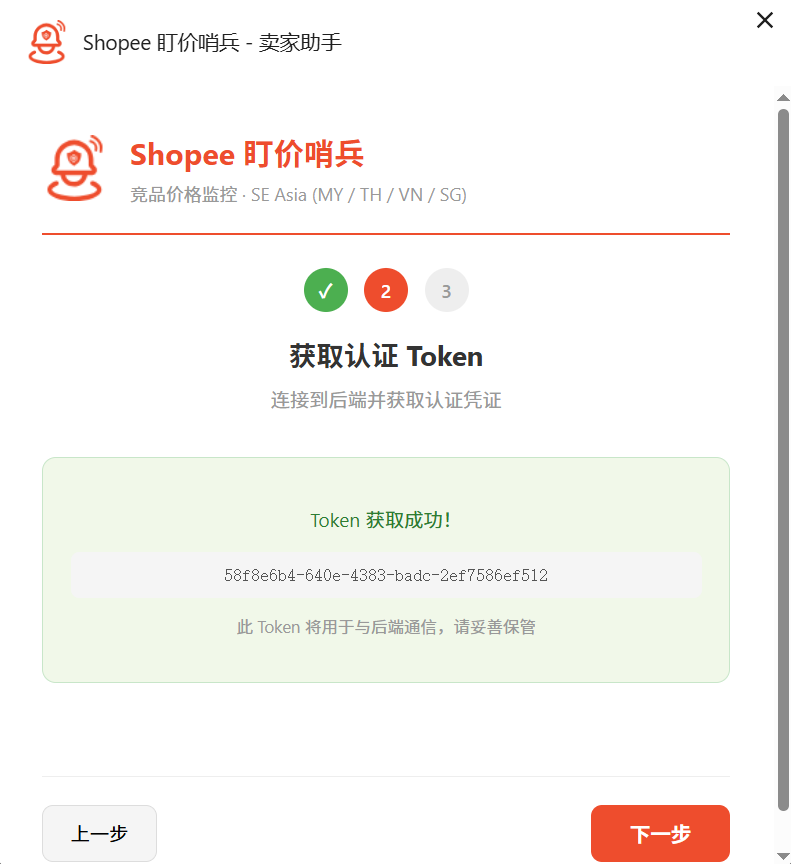
The page goes to Step 2. If it shows "Token obtained successfully", the extension is successfully installed and communicating with the Sentinel backend normally. You can proceed with subsequent configuration.
Step 3: Configure Thresholds
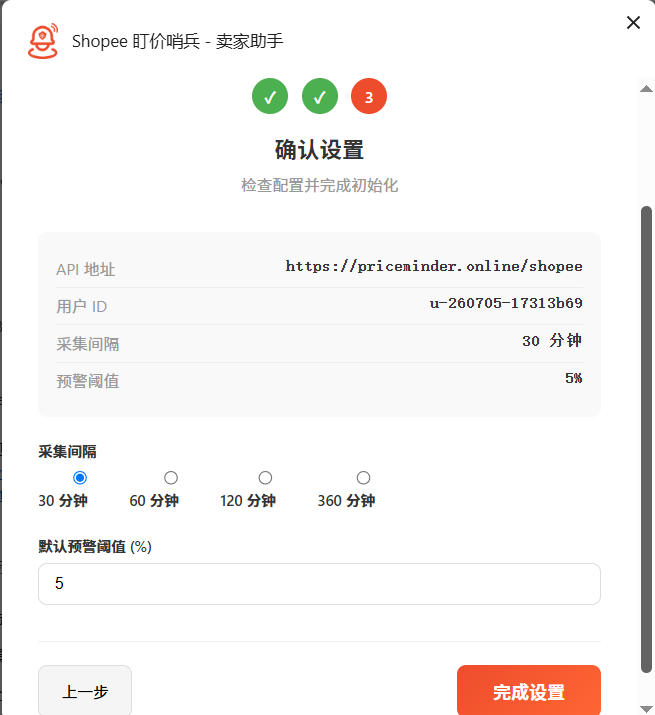
Configure competitor price alert rules in the extension settings. The system runs two types of detection simultaneously:
Floor Breach — Triggered when the current price falls below the initial crawled price by more than the threshold. Example: Base price 100, threshold 5%, alert when price drops below 94.
Price Anomaly — Triggered when the current crawled price changes by more than the threshold compared to the previous crawl (applies to both increases and decreases). Example: Previous price 105, threshold 5%, alert when price rises to 111 or drops to 99.
Step 4: Configure Crawl Interval
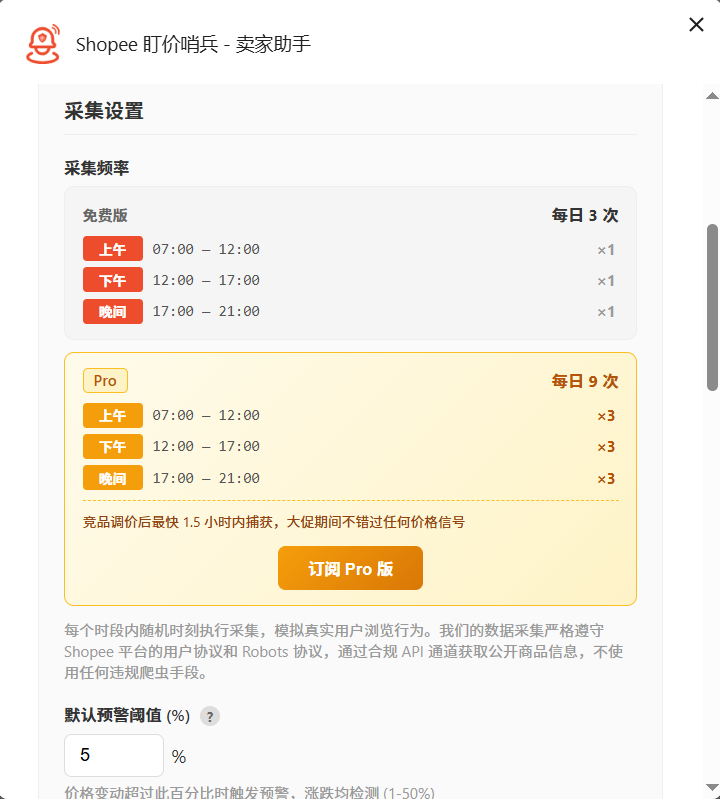
Select the crawl frequency based on your plan: Free plan 3 times/day, Pro plan 9 times/day.
Step 5: Configure Push Notifications
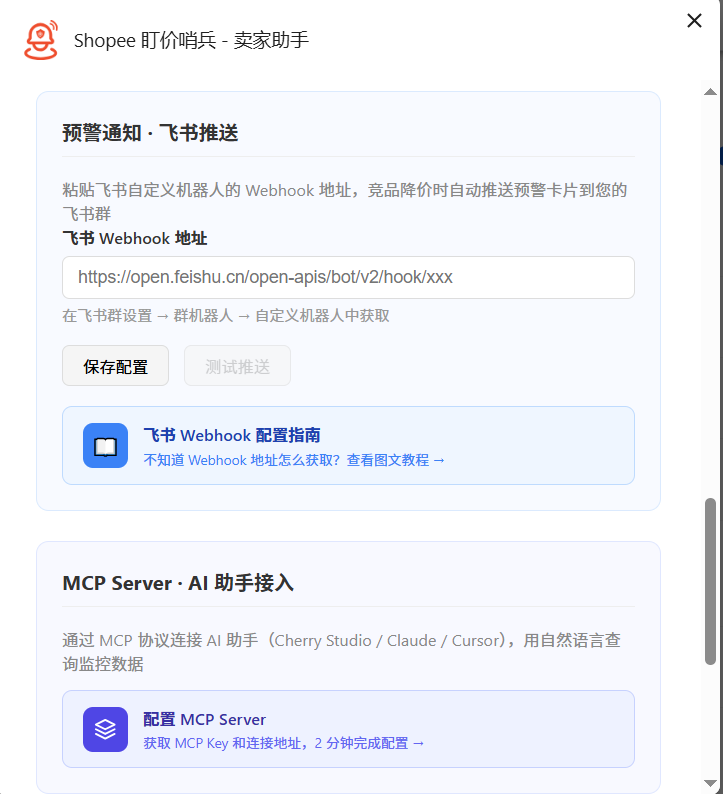
Configure Feishu Webhook or other push channels in the extension settings to receive notifications when prices drop.
Start Using
Add Products to Monitor
Open any Shopee product page (SG/MY/TH/VN sites) in your browser, navigate to the product detail page you want to monitor. On the right side of the price, a "Monitor Now" button will appear. Click it to add the competitor link to your monitoring list.
If the sentinel button does not appear on the page, try refreshing the page.
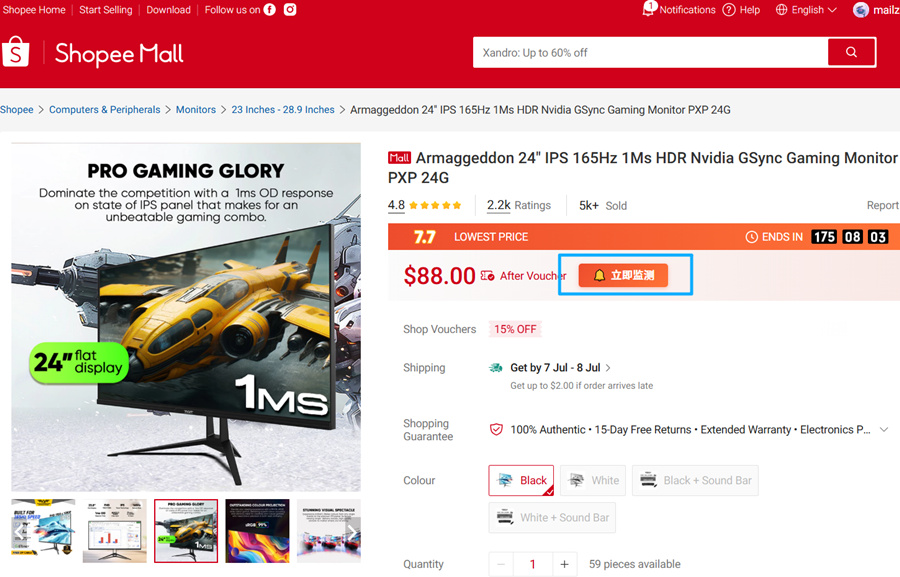
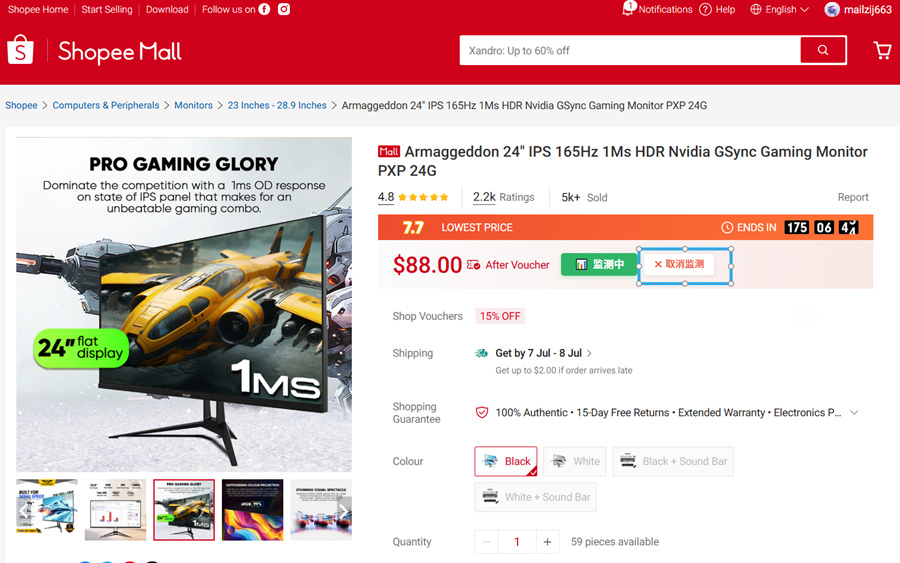
Remove Products from Monitor
To stop monitoring a product, click the "Stop Monitoring" button on the product detail page to remove the product from your monitoring list.
Access Web Management Panel
The management panel provides rich features for viewing monitored products, configuring monitoring settings, and analyzing product price history. Access it from the extension configuration page.
Click the PriceMinder icon on the browser toolbar, open the extension panel, find the "Data Panel" option in the configuration page as shown, and click "Open Data Panel" to access the web management panel.
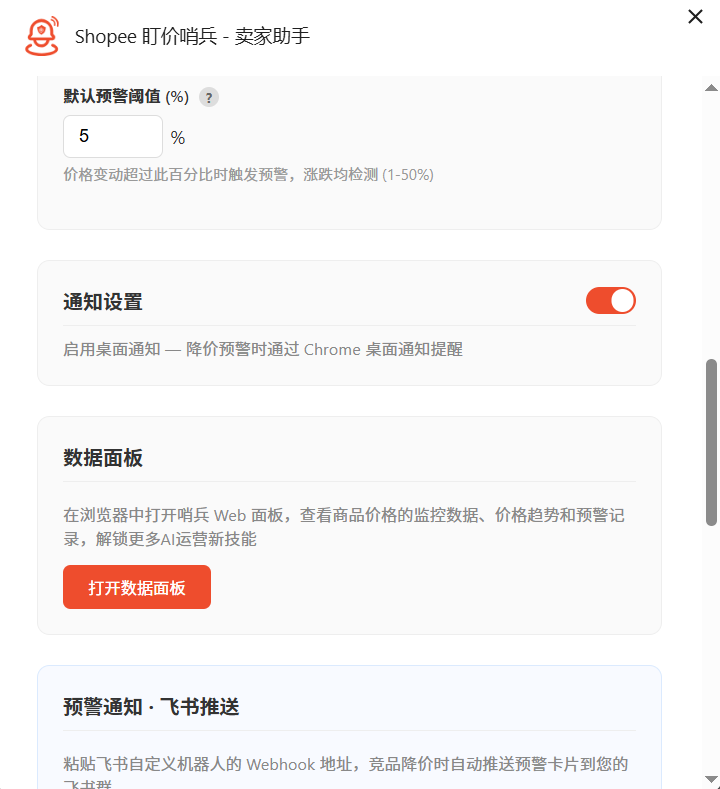
Management Panel Features
The data dashboard provides visual monitoring of products and alerts. The monitoring list allows you to manage product links under monitoring and remove specific product links at any time.
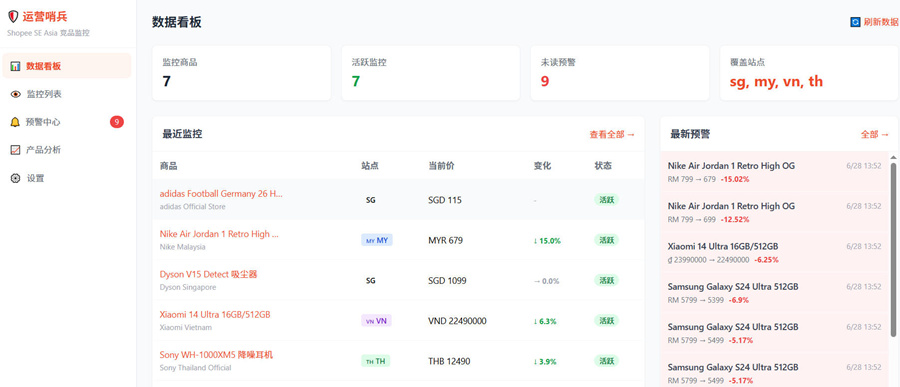
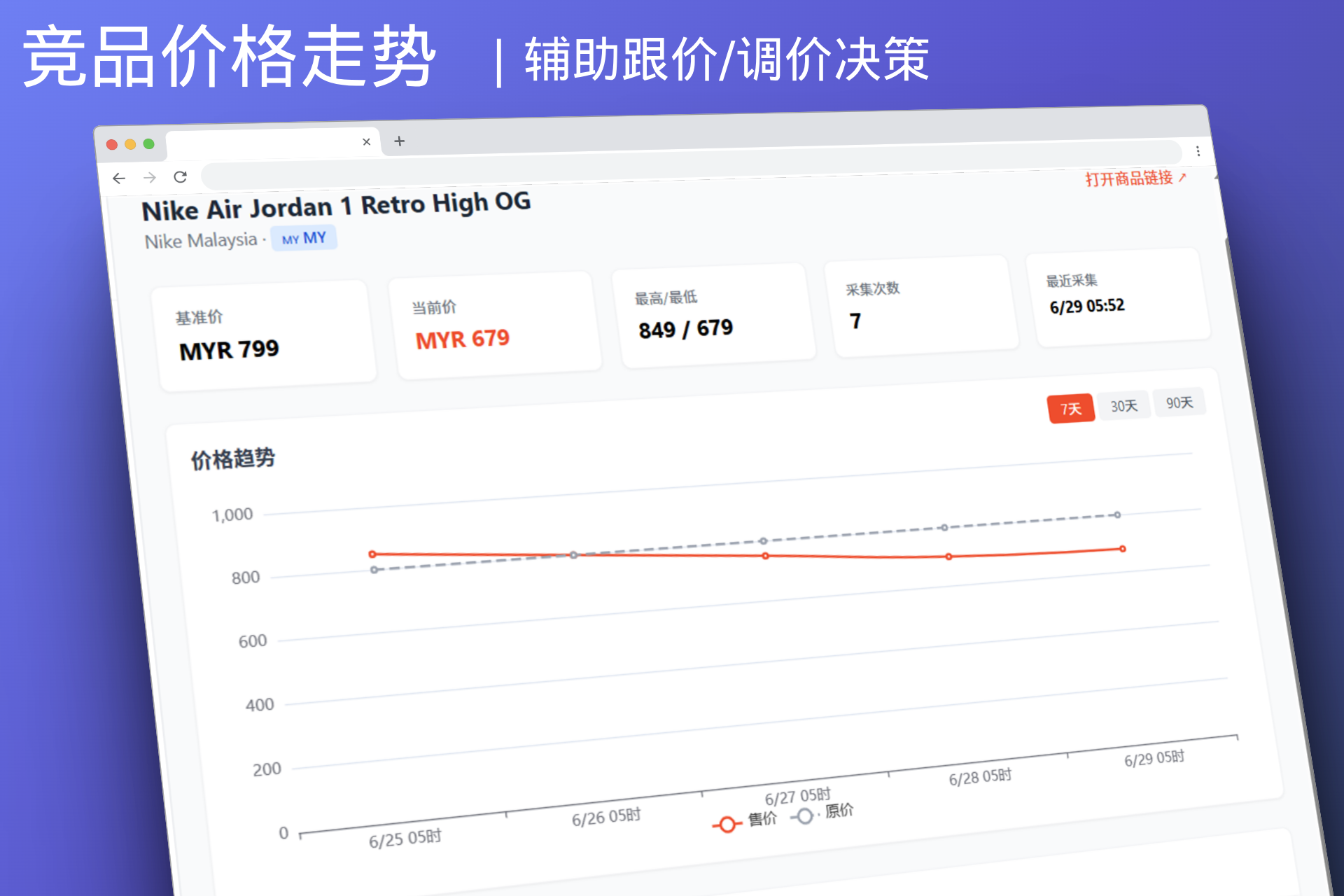
The alert center allows you to view and confirm monitored product information and alert records. Product analysis page.
Cannot see the extension icon after installation?
Click the Extensions button (puzzle icon) in the upper right corner of Chrome, find "PriceMinder" in the list, and click the pin icon to pin it to the toolbar.
Got "manifest file not found" error when loading the extension?
Make sure you selected the extracted folder (the one containing manifest.json), not the ZIP file itself or its parent directory.
Extension shows "Service Worker" error after loading?
This is a normal Chrome prompt and does not affect the extension functionality. The Service Worker runs in the background and is responsible for scheduled crawling and notification pushing.