Opera Installation Guide
 Opera Browser
Video Tutorial
Video Description
The video shows the complete installation process, applicable to all Chromium-based browsers.
Method 1: Online Installation (Chrome Web Store)
Chrome Extension Compatibility
Opera is based on the Chromium engine and can directly install extensions from Chrome Web Store.
Step 1: Open Chrome Web Store
Open Chrome Web Store in Opera and search for "PriceMinder".
Step 2: Click Install
On the extension detail page, click the "Add to Opera" button, and click "Add extension" in the confirmation dialog.
Step 3: Pin to Toolbar
Click the Extensions button (puzzle icon) in the upper right corner of Opera, find "PriceMinder" and pin it to the toolbar.
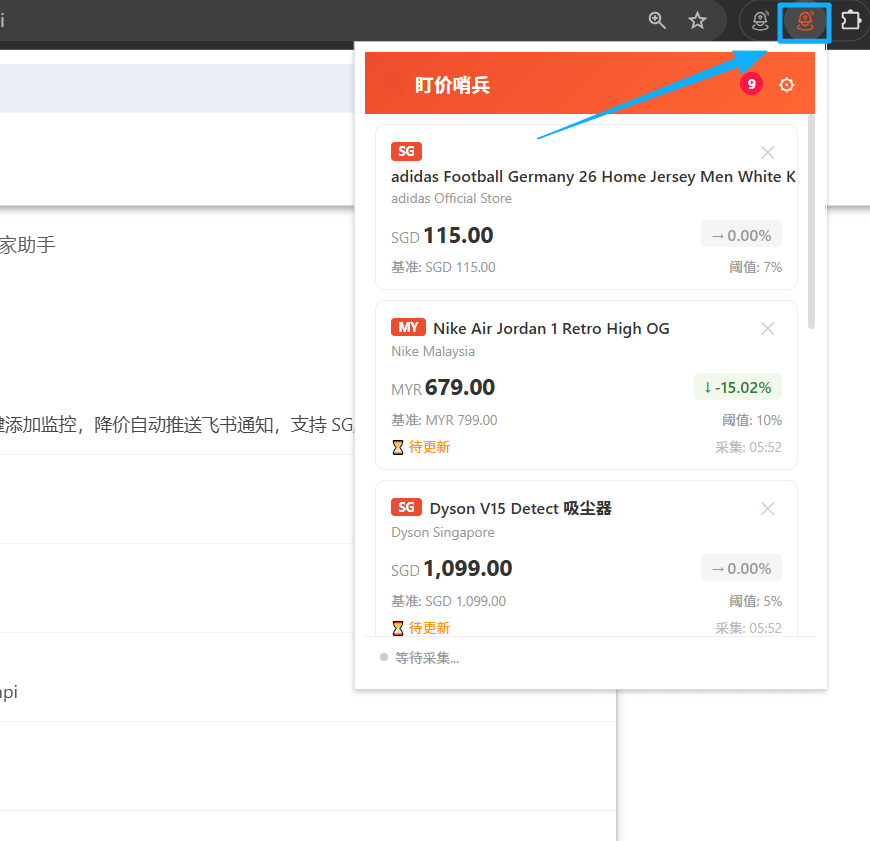
Step 4: Start Using
Click the PriceMinder icon on the toolbar to open the extension panel and start using it.
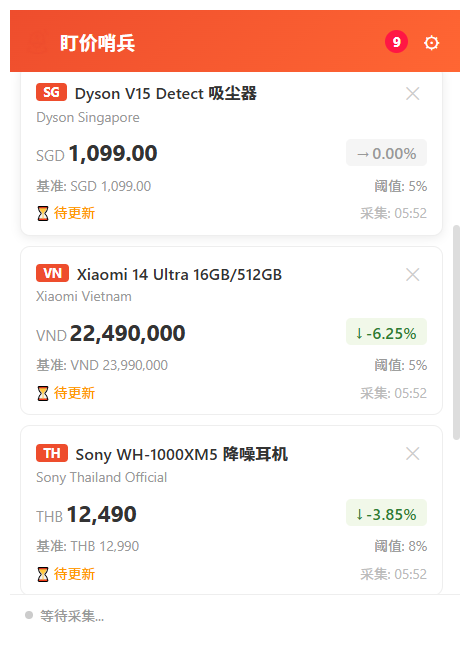
Method 2: Offline Installation (ZIP Extract and Load)
Step 1: Download the ZIP Package
Download sentinelseller-extension-1.0.1.zip from the official website.
Step 2: Extract to a Fixed Folder
Extract the ZIP file to a fixed directory (e.g., D:\Extensions\PriceMinder). Do not delete this folder afterwards.
Step 3: Open Extensions Management Page
Type opera://extensions in the Opera address bar and press Enter to open the extensions management page.
Find the "Developer mode" toggle in the upper right corner of the page and turn it on.
Step 4: Load Unpacked Extension
Click the "Load unpacked extension" button at the top of the page, select the extracted folder to complete installation.
Step 5: Pin to Toolbar
Click the Extensions button in the upper right corner of Opera, find "PriceMinder" and pin it to the toolbar.
Step 6: Start Using
Click the PriceMinder icon on the toolbar to open the extension panel and start using it.
Post-Installation Configuration
Configure Push Notifications
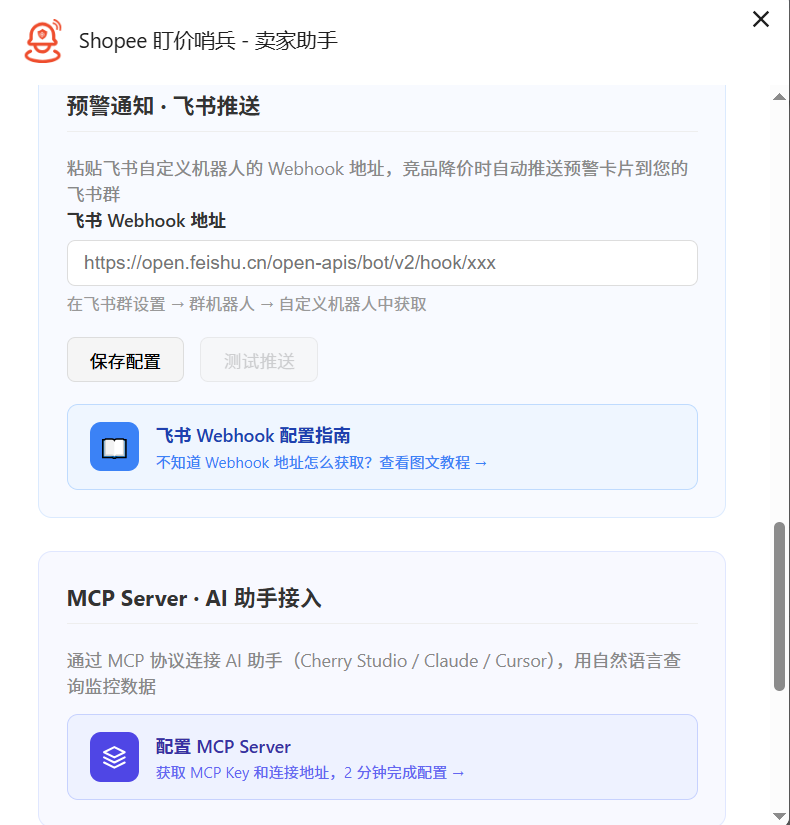
Configure Crawl Interval
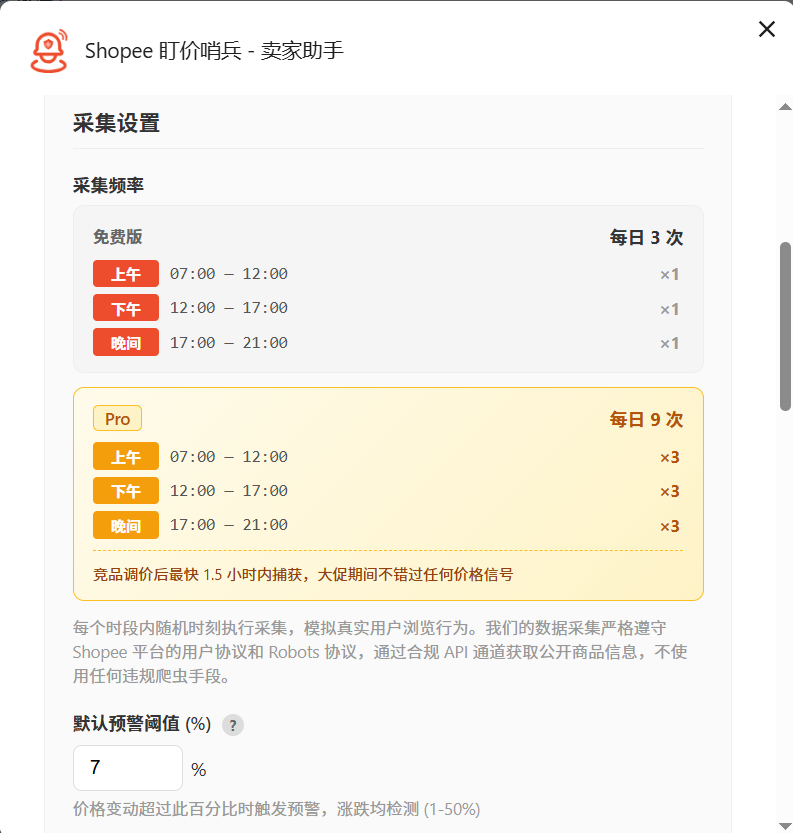
FAQ
Is it safe to install Chrome extensions in Opera?
Yes. Opera is based on the Chromium engine and officially supports installing extensions from Chrome Web Store.
Cannot find the "Load unpacked extension" button?
Make sure the "Developer mode" toggle is turned on. It is located in the upper right corner of the extensions management page.