Connect AI in 3 steps, let 22 tools watch your competitors
Install the extension → grab your MCP Key → paste one URL into your AI client. About 10 minutes, then ask in natural language about competitor prices, price-drop alerts and smart-follow decisions.
Works with Cherry Studio · WorkBuddy · TRAE · QwenWork · Claude Desktop · Cursor · Cline · OpenClaw · Hermes




Product Architecture: Three-Layer Flow
PriceMinder is not a standalone tool; it is a complete pipeline from "data crawling" to "AI decision-making." Understanding this diagram reveals the full value of the product.
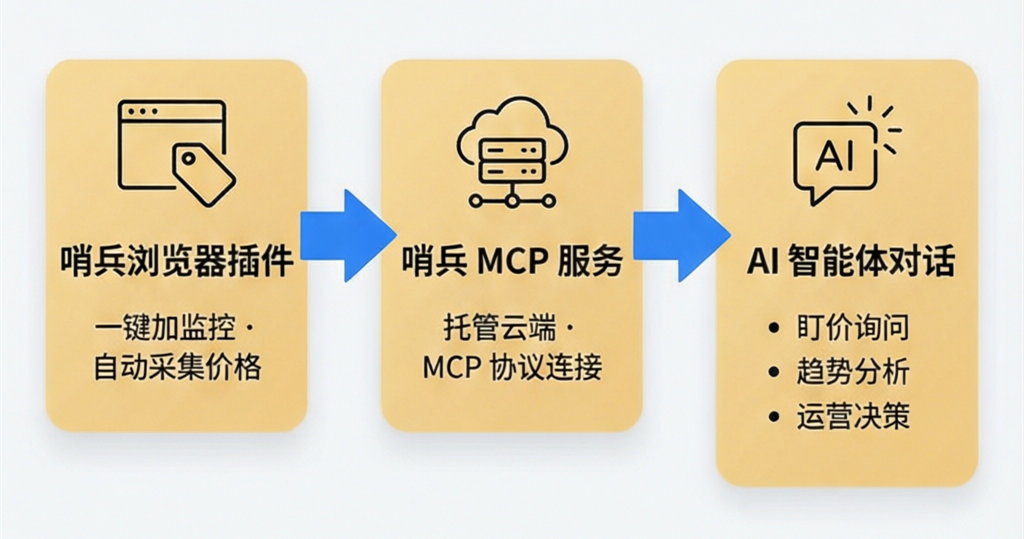
The pipeline has three layers:
Layer 1 — PriceMinder Browser Extension. Installed in Chrome, when a seller opens any Shopee product detail page, the extension automatically identifies the product. Click "Monitor Now" to add the product to the monitoring list. The system then continuously crawls price data at the configured interval without manual intervention.
Layer 2 — PriceMinder MCP Server. Hosted in the cloud, it exposes crawled price data, monitoring lists, and alert records via the MCP (Model Context Protocol) as standardized interfaces. AI clients need no knowledge of backend details — they simply read data through MCP. MCP is the "USB-C interface" of AI — whether you use Claude, Cherry Studio, or Cursor, as long as it supports MCP, it can connect uniformly.
Layer 3 — AI Agent Conversation. After configuring the MCP address in your preferred AI client, you can use natural language to ask about competitor prices, trend analysis, and operational decisions. AI automatically selects the right tools (e.g., get_price_summary, get_price_history) to answer your questions.
In short: the extension handles "inputting" competitors, while MCP lets AI "analyze and manage" them.
Configuration Guide: Three Steps to Connect
Step 1: Install the Browser Extension
Install the PriceMinder extension from the Chrome Web Store or the official website download page. After installation, open any Shopee product detail page and look for the "Monitor Now" button in the top-right corner. Click it to add the product to your monitoring list.
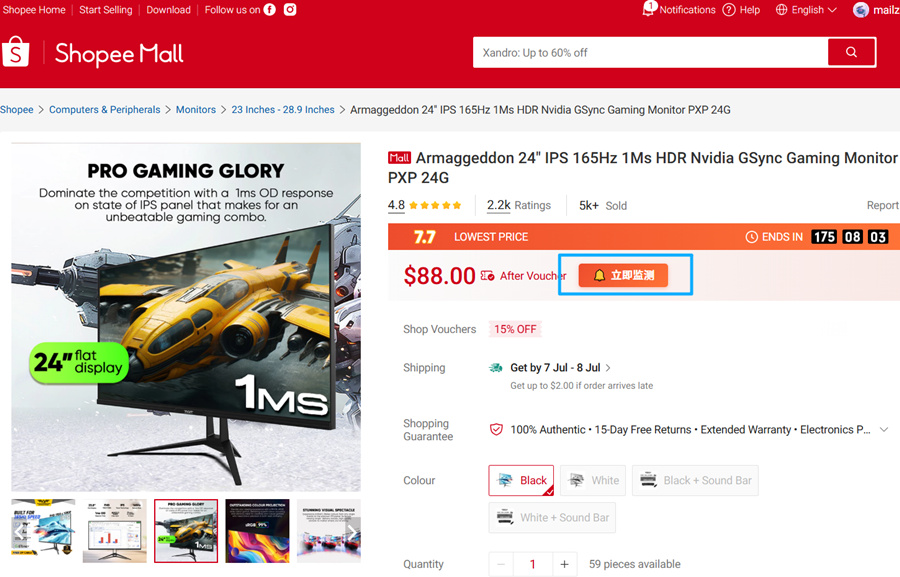
After installation, you can configure the check schedule (Free plan: 2 checks a day, Pro plan: 4 checks a day) and the price drop alert threshold (default: 5%) on the extension settings page. For detailed installation steps and browser support, see the Extension Installation Guide.
Step 2: Configure Feishu Push Notifications
When a competitor's price drops below the threshold, the system automatically pushes an alert card to your Feishu group. To configure, create a "Custom Bot" in your Feishu group and paste the Webhook URL into the push configuration area on the extension settings page.
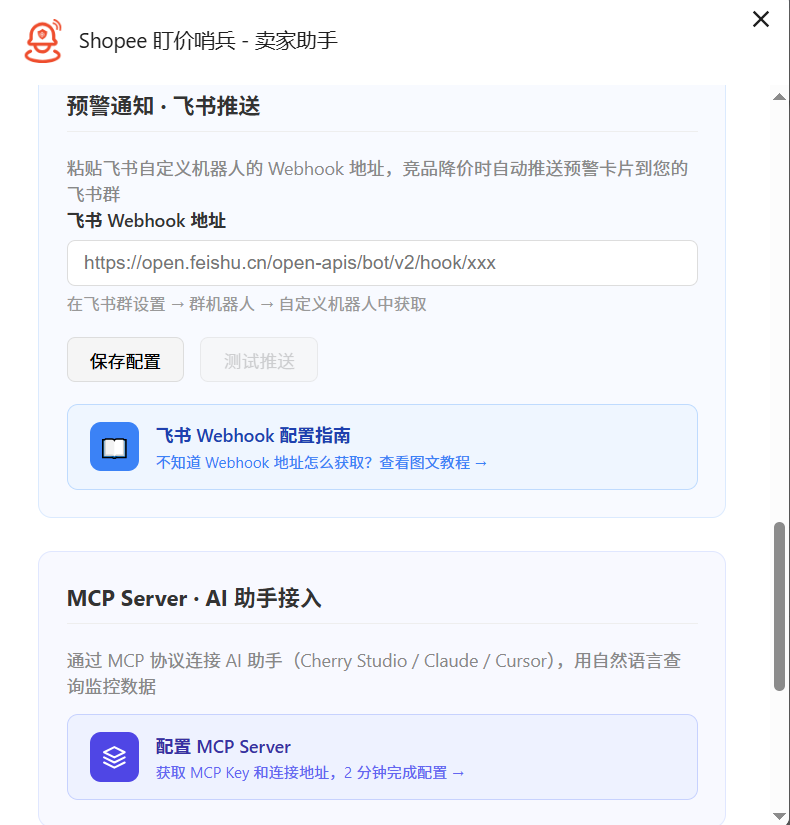
For complete Feishu Webhook configuration steps (with screenshots), see the Feishu Push Configuration Guide. After configuration, click "Test Push" to verify success.
Other Push Channels
Feishu is the currently supported push channel. Telegram Bot push is under development, and more Southeast Asian IM platforms will be supported in future versions.
Step 3: Connect MCP in Your AI Client
This is the key step to connect "extension data" to "AI conversation." Add the following MCP configuration in your AI client (such as Cherry Studio, WorkBuddy, TRAE, Claude Desktop, Cursor, etc.):
{
  "mcpServers": {
    "sentinel": {
      "url": "https://priceminder.online/mcp_server?key=YOUR_MCP_KEY"
    }
  }
}
The MCP Key can be found on the extension settings page. For specific steps per client, see the Client Integration Tutorial.
Currently supported clients:
| Client | Priority | Status |
|---|---|---|
| Cherry Studio | P0 · Recommended | Supported |
| OpenClaw | P0 · Recommended | Supported |
| WorkBuddy | P1 | Supported |
| Claude Desktop | P1 | Supported |
| Cursor | P1 | Supported |
| TRAE | P1 | Supported |
| Cline | P2 | Supported |
| Hermes Agent | P2 | Supported |
| QwenWork | P2 | Supported |
Tencent Yuanbao / Doubao and Other Clients
If domestic AI clients (such as Tencent Yuanbao, Doubao) support the MCP protocol, they can also connect using the URL above. Please refer to the corresponding client's MCP configuration documentation.
Local Stdio Mode (Optional for Developers)
The steps above use Hosted HTTP Mode — the MCP Server runs in the cloud with just one URL to configure. If your engineering team needs local debugging, you can also run in stdio mode:
uvx sentinel-mcp-server{
"mcpServers": {
"sentinel": {
"command": "uvx",
"args": ["sentinel-mcp-server"],
"env": {
"SENTINEL_API_BASE": "https://priceminder.online/api/v1",
"SENTINEL_TOKEN": "YOUR_API_TOKEN"
}
}
}
}Stdio mode uses API Token (longer), not MCP Key (shorter). Both are obtained from the extension settings page. Requires Python 3.11+ and the uv package manager installed locally.
Getting Started: Query Competitors via Conversation
After configuration, open your AI client and ask questions in natural language. AI automatically calls the appropriate MCP tools to answer.
Verify Connection
Use the following prompts to test if the connection is working:
| You Say | Tool AI Calls | Expected Response |
|---|---|---|
| "My monitoring list" | get_monitor_list | Current list of monitored products |
| "How are competitor prices lately" | get_price_summary | Price summary (current/baseline/high/low/average) |
| "Any new price drop alerts" | get_alerts | Unread price drop alert records |
| "Is the crawl system running normally" | get_crawl_health | Crawler engine health status |
If AI correctly returns your monitoring data, the integration is successful.
Conversation Example
A typical morning inspection conversation:
You: Please check if competitors on SG site dropped prices last night
AI: Among 5 monitored products on SG site, 1 price drop last night:
📉 iPhone 15 Pro Max:SGD 1,599 → SGD 1,499 (↓6.3%, Feishu alert sent) ➡️ AirPods Pro 2:SGD 349, unchanged ➡️ Samsung S24 Ultra:SGD 1,799, unchanged
Recommend watching iPhone's price trend — competitor may be running a promotion.
AI has 22 tools available: query tools (check prices, view trends, receive alerts), management tools (add monitor, pause/resume), insight tools (crawl health, monitoring dashboard), and 12 smart-follow tools (run analysis, read suggestions, log/adopt/reject/review decisions, view stats). For the complete tool list and documentation, see MCP Tools Overview. For more real conversation scenarios, see Scenarios & Best Practices.
Product Benefits
Once the three-layer pipeline is connected, you don't just get a "price monitoring tool" — you get an always-on competitor intelligence system:
Speed advantage. With 2 checks a day on Free and 4 on Pro, a competitor price drop triggers a Feishu alert in the very next check. Traditional methods relying on manual daily checks often only discover changes at T+1 — losing a day's worth of pricing can cost far more than a month of this service.
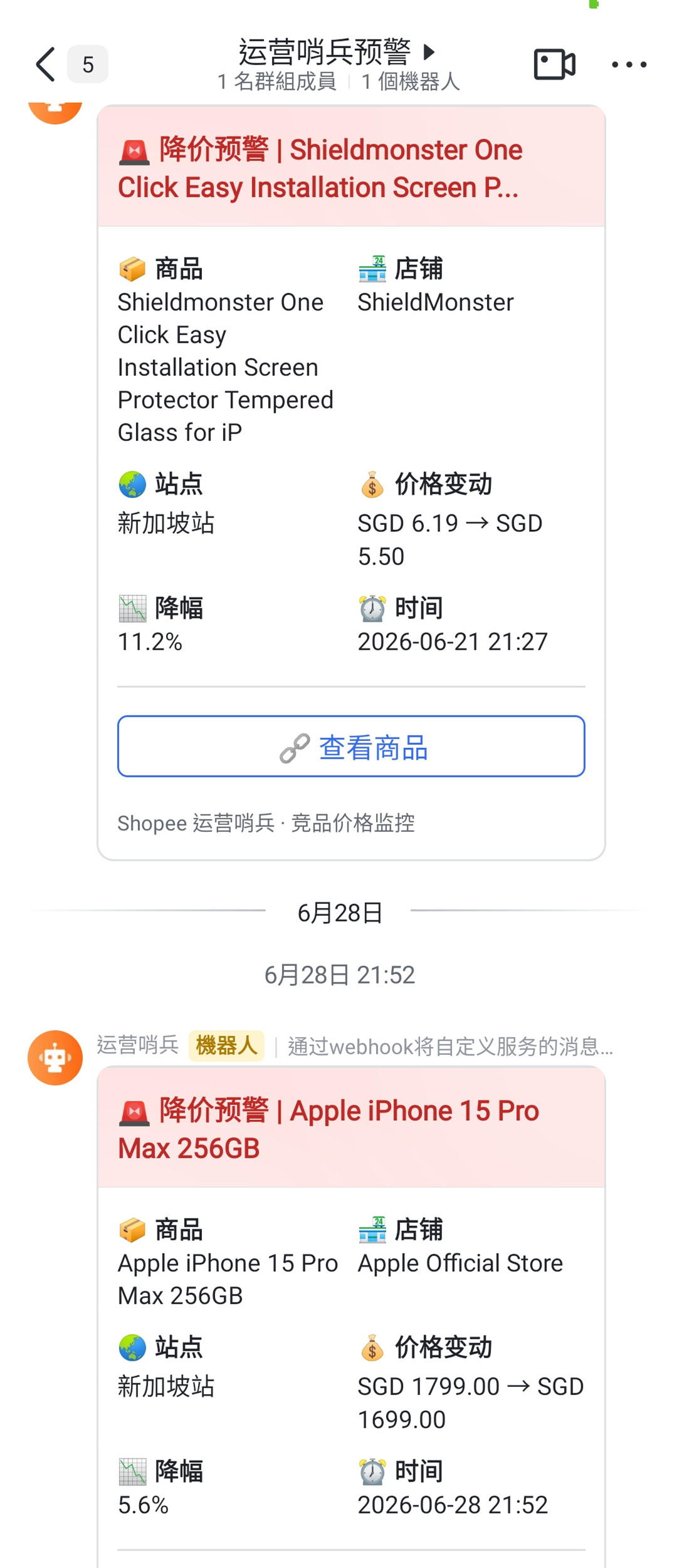
The price drop alert card received in the Feishu group, containing product name, price change magnitude, and other key information
Decision advantage. Use natural language to complete price inspections, trend analysis, and competitor comparisons without opening any backend interface. AI provides analysis and recommendations based on your actual monitoring data, not generic advice.
Cost advantage. Basic monitoring is free. Pro plan lifts the daily check count from 2 to 4 and supports daily price briefs and trend charts. Instead of spending manpower staring at prices daily, let AI do it for you.
Next Steps
- Features — Detailed explanations of 6 core capabilities
- MCP Tools Overview — Complete capability list for 22 tools
- Client Integration Tutorial — Detailed configuration steps for each AI client
- Scenarios & Best Practices — 5 real conversation scenario demos
- Feishu Push Configuration — Complete Webhook bot configuration guide