Feishu Webhook Configuration Guide
Through Feishu group's "Custom Bot" feature, Shopee PriceMinder can automatically push alert cards to your Feishu group when competitor price drops are detected. You only need to install the Feishu App to receive real-time notifications on your phone or computer. The entire configuration process takes about 5 minutes.
Video Tutorial
Video Description
The video shows the complete flow from creating a Feishu group, adding a custom bot, configuring the Webhook, and receiving a test push. It is recommended to watch the video first, then follow the step-by-step guide below.
Step 1: Download and Install Feishu
If you do not have a Feishu account, please download and install Feishu and complete registration first. Feishu personal version is free to use and does not require enterprise verification.
Supports iOS / Android / Windows / macOS.
Step 2: Create a Feishu Group
Create a new group chat in Feishu to receive alert messages. You can create an exclusive group (e.g., named "Sentinel Alerts"), or reuse an existing group.
Tip
A group chat requires at least 2 members to create. You can invite a colleague first, add the bot, then remove the colleague from the group. You can also create a "group with only yourself" — when creating the group, add only yourself, and Feishu will automatically create a single-person group (some versions may require inviting 1 person first, who can be removed later).
Step 3: Go to Group Settings and Find "Group Bots"
Enter the group chat → Click the group settings icon (⚙️) in the upper right corner → Find the "Group Bots" option.
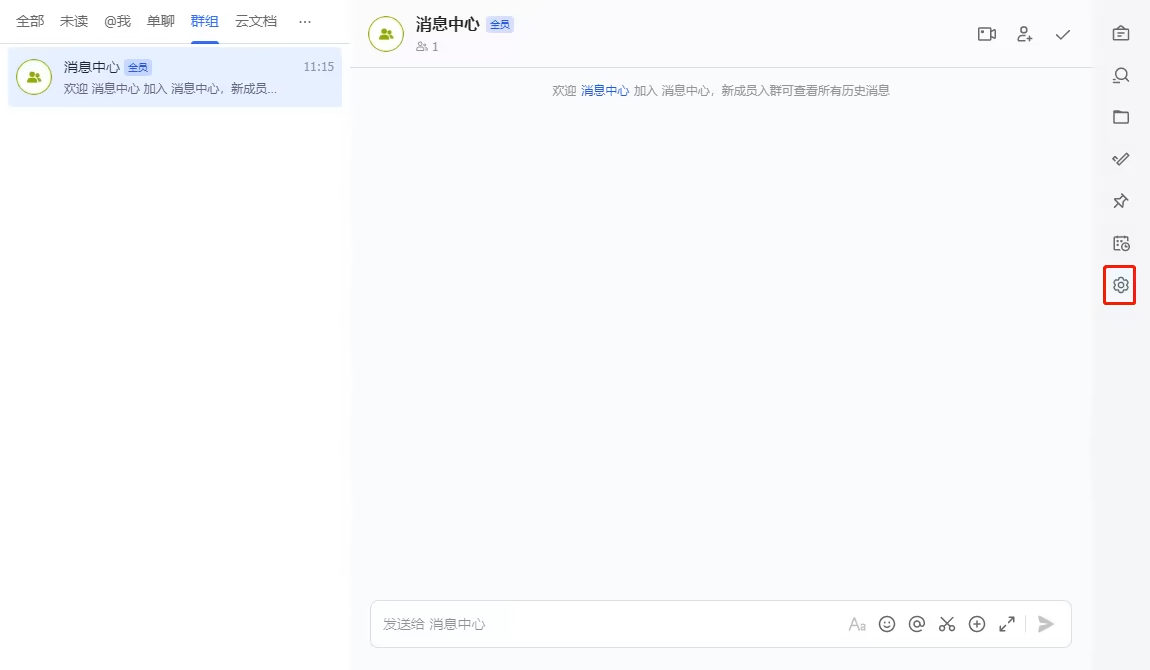
Click the settings icon in the upper right corner of the group chat to find the "Group Bots" entry
Step 4: Click "Add Bot"
On the Group Bots page, click the "Add Bot" button, then select "Custom Bot".
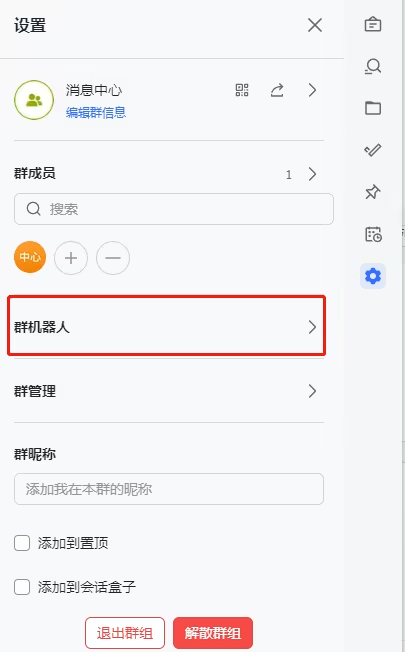
Group bots page
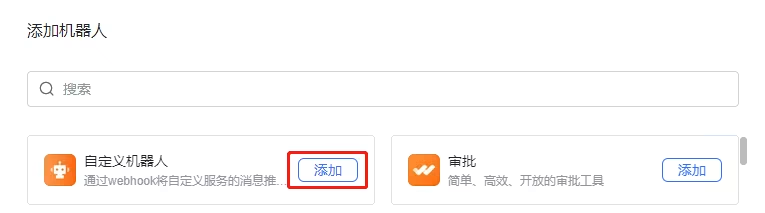
Select "Custom Bot"
Step 5: Fill in Bot Information
In the popup settings page:
- Bot name: enter
PriceMinder - Description can be: "Competitor price drop alert push"
- For security settings, select "Custom Keywords" and enter
price drop - Click "Add" to complete creation
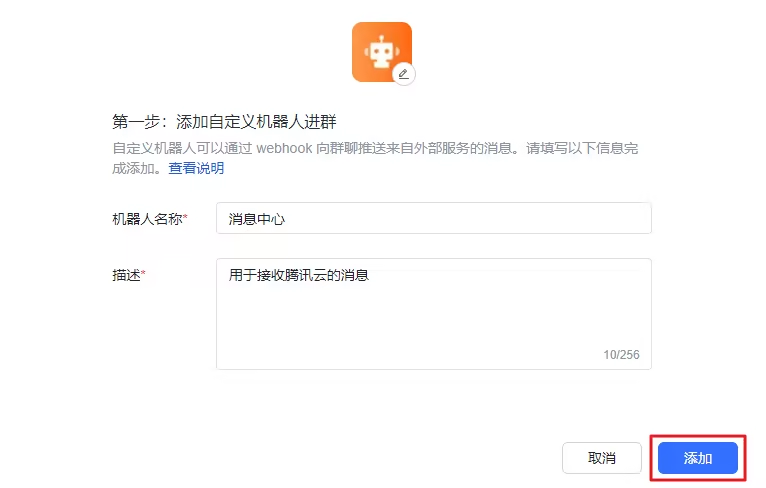
Fill in bot name and security settings
Important
Security settings usually include custom keywords, IP whitelist, and signature verification — none are mandatory. However, the "Enable this bot" option must be checked to pass verification normally.
Step 6: Copy the Webhook URL
After the bot is successfully created, the page will display a Webhook URL, in the format:
https://open.feishu.cn/open-apis/bot/v2/hook/xxxxxxxx-xxxx-xxxx-xxxx-xxxxxxxxxxxx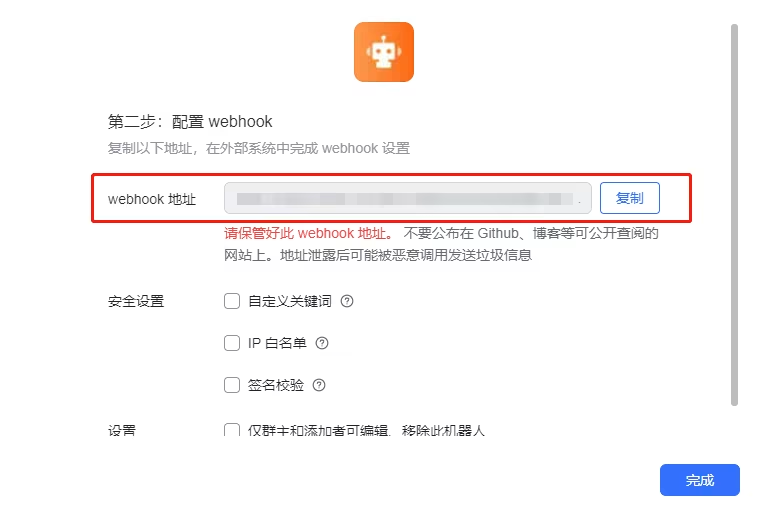
Webhook URL displayed after successful creation
Note
Please copy this address and keep it safe. You will not be able to view it again after closing the dialog (you will need to delete the bot and recreate it).
Step 7: Configure and Test in the Seller Extension
Return to Chrome browser, open the Shopee PriceMinder Extension Options settings page, paste the Webhook URL you copied in the "Feishu Push" area, then click the "Test Push" button.
Signs of successful verification:
- Extension page shows "✓ Push successful"
- A green-titled "PriceMinder · Feishu Push Test" card message is received in the Feishu group
After configuration is complete
Whenever the crawler detects a competitor price drop exceeding your set threshold, the system will automatically push a red alert card to your Feishu group, containing product name, shop, site, price change percentage, and other key information, along with a "View Product" quick button.
FAQ
What if the test push failed?
Please check:
- Is the Webhook URL completely copied?
- Is "Custom Keywords" selected in security settings and "price drop" entered?
- Is the bot still in the group (not removed)?
How often will I receive alerts?
Triggered when the competitor price drop exceeds your set threshold (default 5%). The same product will not be pushed again within 1 hour to avoid message spam.
Can I turn off push notifications?
Yes. Clear the Webhook URL in the extension Options page to disable push. You can also directly remove the bot from the Feishu group.
Reference Documentation
Feishu officially also provides custom bot configuration instructions: Tencent Cloud T Temb — Feishu Custom Bot Configuration Guide